
Caisse4All
Manual
This page is machine-translated from French. The region determines the payment methods and currency described in this documentation.
Caisse4All lets a group (a family, a neighbourhood, a village, an association, a savings circle, a committee) manage its shared money in full transparency. The aim of the product is trust: every operation must be understandable, verifiable and traceable.
What is the app for?
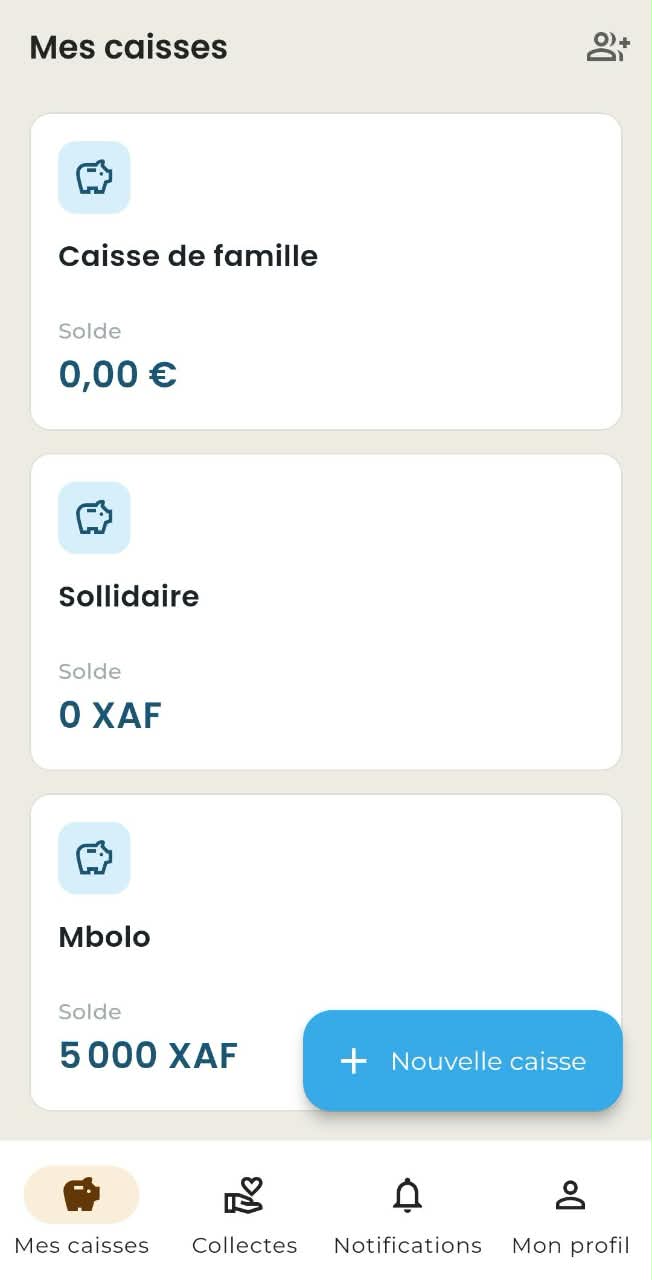
- Funds: create a fund, invite members with a shareable group code, manage roles and follow the balance.
- Contributions: record payments in cash, SEPA transfer or PayPal, confirmed by the treasurer, with the option to attach proof (photo or PDF).
- Dues: follow month by month who is up to date and who is late against the agreed contribution amount.
- Expenses: record money going out, with a warning if the expense exceeds the balance.
- Fundraisers: start a pot with a target, contribute to it choosing your level of anonymity, and share it on WhatsApp.
- Fund statements: share a web link, protected by a secret code, for people without the app, with a downloadable PDF.
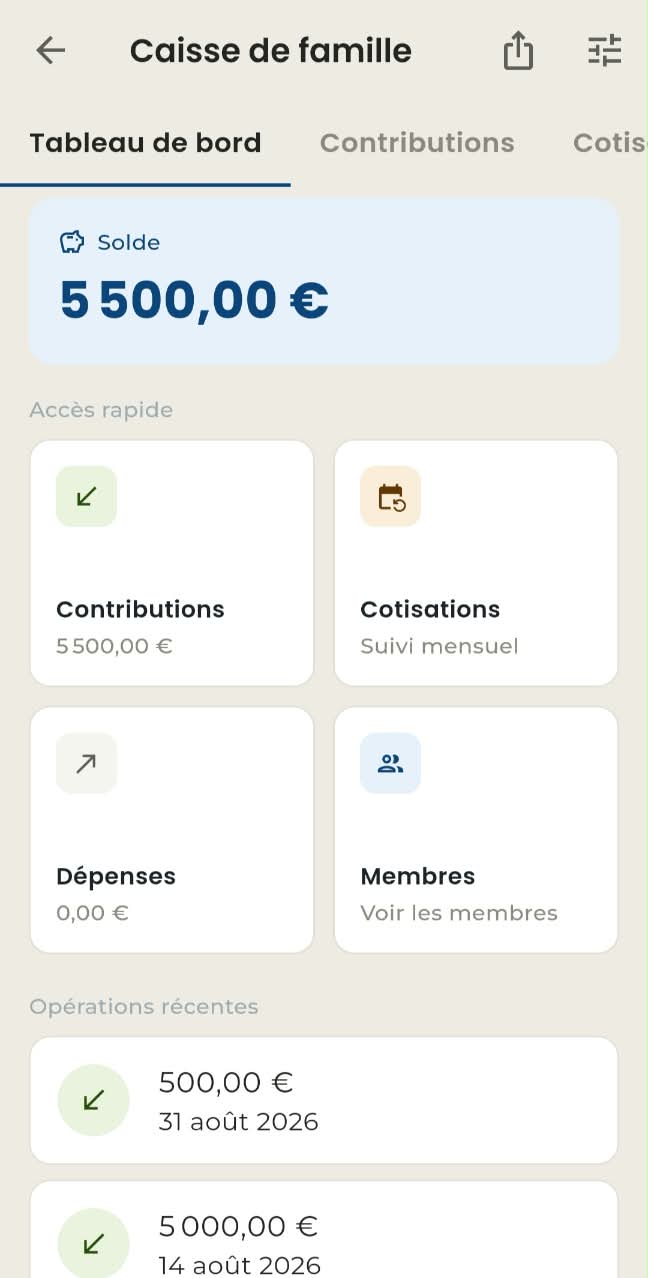
- Dashboard: balance, contributions and expenses for the month, recent operations.
- Offline: the app works without a network; entries are saved and then synchronised automatically once the internet is back.
Requirements
- An Android 6.0 (Marshmallow) phone or newer.
- An internet connection (Wi-Fi or mobile data), except when using offline mode.
- A valid phone number to create an account.
Installation
- Open the Google Play Store on your Android phone.
- Search for "Caisse4All" in the search bar.
- Open the app listing, published by Mega-Ique Digital SARL, then tap Install.
- Once installation is finished, open the app and create your account.
Updates are installed automatically by the Play Store as soon as a new version is released. An iPhone version is planned for later.
Creating an account and signing in
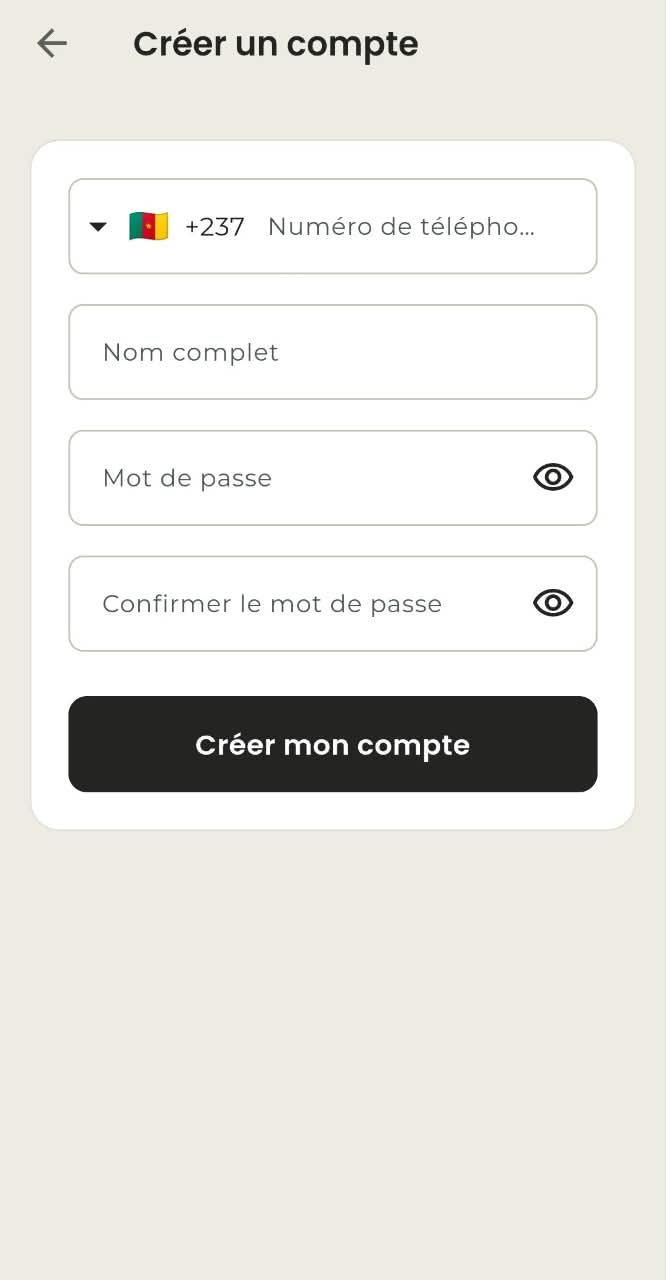
Your login is your phone number; the password is the one you choose when signing up. The +49 dialling code is suggested by default.
- On the home screen, tap "Create an account".
- Enter your number, your name and a password of at least eight characters.
- If you are asked for an SMS code, enter it: your account is active straight away.
- If SMS verification is unavailable, the account is created pending activation and the app offers to contact support on WhatsApp.
Why some accounts are activated manually
Caisse4All is a free app. Yet every verification SMS has a real cost with the operator, a cost that grows with the number of sign-ups. So that the app can stay free, SMS sending is not enabled everywhere or at all times: new accounts are then activated manually by support. This changes nothing about the outcome, only about the wait.
If you forget it, tap "Forgot your password?". The reset is done by SMS code where the service is available; otherwise support gives you a temporary password, to be changed from Profile then "Change password".
Changing your phone number
Your phone number is how you sign in: it cannot be edited like an ordinary profile field. Open Profile, then “Change my number”, enter the new number and your password. If the SMS service is available, a code is sent to the NEW number: entering it is enough to approve the change. Otherwise the request stays pending and support approves it after checking; the screen then shows a reference for you to send them on WhatsApp.
Roles, set fund by fund
Your rights depend on your role in each fund, not on a global status. A member can hold several roles at once: their rights are then the sum of those roles.
| Role | What they can do |
|---|---|
| Administrator | Manage everything: the fund, members, roles and fundraisers. |
| Treasurer | Record and approve contributions and expenses, produce reports and statements. |
| Member | View their funds, contribute, see their own history. |
| Auditor | Read-only: no write action is offered to them. |
Whoever creates a fund is its administrator. To join an existing fund, you need its invitation code. That code is reusable, like a group link: the administrator shares it with several people at once from the Members tab.
Creating and following a fund
Tap “New fund”, then enter the name, the type, the currency (EUR by default in your region), the group's payment details and, if you wish, a contribution amount used for monthly tracking. As soon as a frequency is chosen, two dates appear: the start of the dues schedule and, if you want one, its end. They stop the fund from claiming months that predate its creation, or from sending reminders after the last expected payment. When it opens, the fund shows five tabs: Dashboard, Contributions, Dues, Expenses and Members. The opening balance is zero.
Contributions
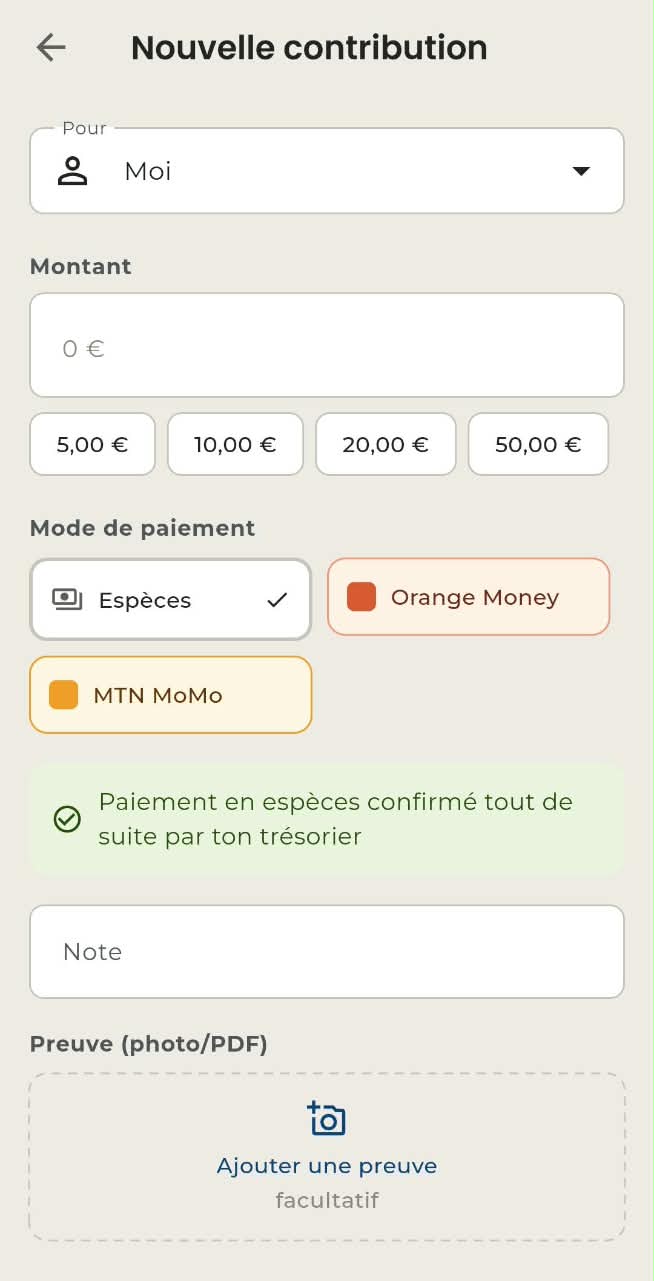
From the Contributions tab, tap the add button, enter the amount and choose the payment method. A cash contribution recorded by a treasurer is confirmed straight away and the balance goes up. Recorded by a member, it stays pending until a treasurer approves it. A zero or negative amount is refused.
For a payment by SEPA transfer or PayPal, the payment reference becomes mandatory and you can attach proof: a photo or a PDF of five megabytes at most. The contribution then shows as "Pending" and does not yet count towards the balance; a treasurer or an administrator approves it, and it becomes "Confirmed", or rejects it.
A treasurer can record a contribution on behalf of another member: the form's "For" selector offers a search by name or by phone number.
Tracking dues
If the fund has a contribution amount set, the Dues tab shows the amount expected per member, how many members are up to date and how many are late, and for each one the detail of paid against expected. The arrows move between months, without going beyond the current one.
If the month you are viewing falls outside the fund's dues schedule, before it starts or after it ends, the screen says so: nothing is owed that month and nobody is late. An administrator can set that period at any time from the fund menu, under “Dues schedule”; a date left empty means “from the beginning” for the start and “no end date” for the end. Dues reminders follow the same rule: no reminder is sent outside that period.
Expenses
Adding an expense is offered only to treasurers and administrators. If the amount exceeds the balance, a warning appears without necessarily blocking the entry, depending on the fund's rules. An expense is never deleted: it is cancelled or archived, and the record remains.
Members
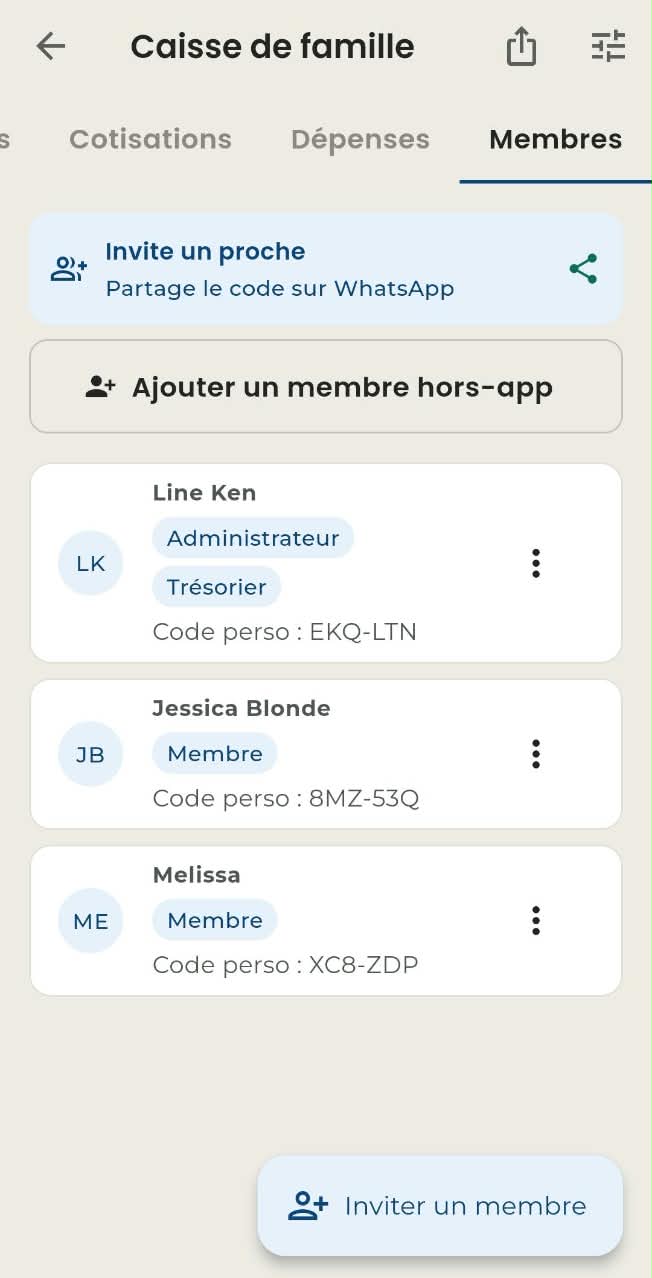
- Invite. An administrator shows a reusable group code, to copy or share on WhatsApp. The guest joins the fund through "Join a fund".
- Change roles. From a member's context menu, an administrator can assign several roles.
- Remove a member. Their history is preserved. The only exception: an off-app member with no recorded operation is deleted for good, since there is nothing to keep.
- Off-app member. A treasurer can add someone who does not have the app: only the name is required. The phone number is optional, and the flag in front of the field lets you pick the country code: it is the complete number that will recognise the person.
- Correcting their number. As long as the person has no account, a treasurer can change their country code and number, or remove them. Once they have an account, only they can change them.
- History handover. It happens when the person installs the app, creates their account with that number and joins the fund with the code: their membership and history then join them. An administrator cannot do it on their behalf, except in an exceptional case explicitly confirmed in the app.
Keeping transactions private between members
Some groups would rather not have everyone see what the others pay in. An administrator or a treasurer can turn this on from the fund menu, under “Hide transactions between members”. It is off by default: as long as nobody turns it on, nothing changes.
Once it is on, a member only sees their own contributions and their own dues tracking. What stays visible to everyone, because it is what makes the group transparent: the balance, the totals, the up to date and late counters, and the expenses, which are shared money rather than a personal transaction. A banner on the screen explains why the list is shorter.
Fundraisers
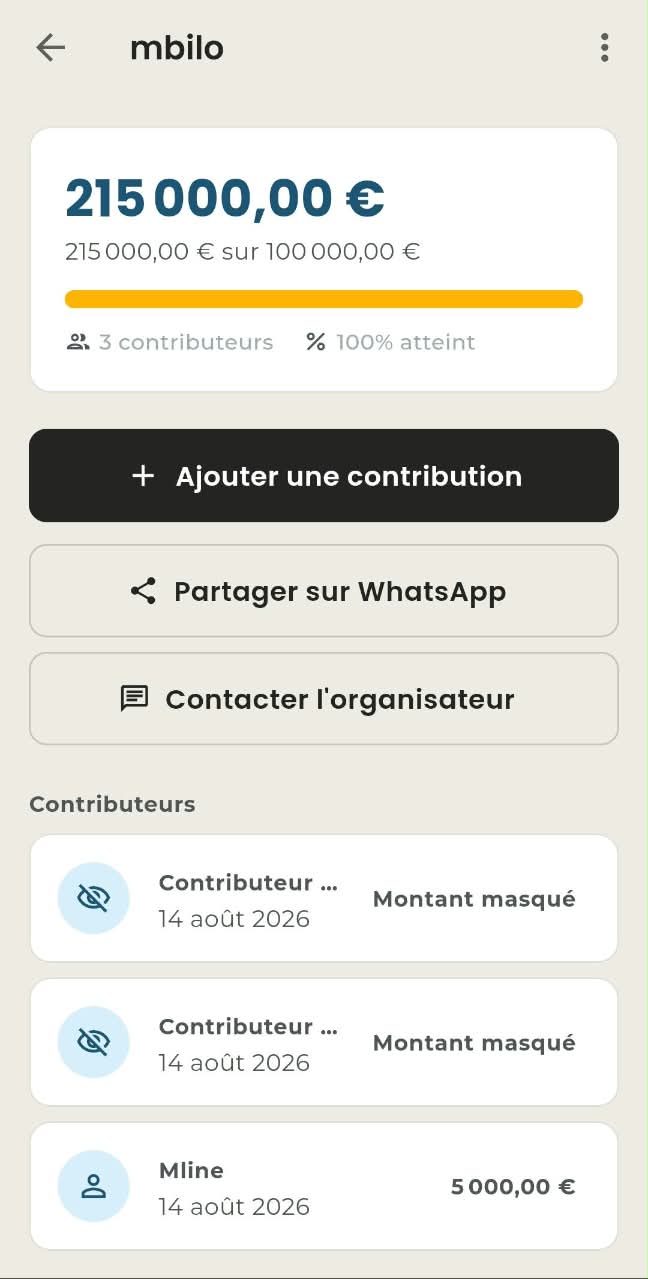
A fundraiser is a pot with a target and an end date. Creating one is guided step by step and requires at least one payment detail as well as a WhatsApp contact for the organiser. The detail view shows the amount still to raise, the percentage reached and the days remaining.
| Level of anonymity | How it appears in the contributor list |
|---|---|
| Public | Name and amount visible. |
| Amount only | "Anonymous contributor" and the amount. |
| Anonymous | "Anonymous contributor", amount hidden. |
A truly anonymous contribution does not ask for a name, and the contributor's identity is never revealed to other members. The organiser can edit the fundraiser, approve or reject pending contributions, then close it. Once closed, which is final, no further contribution is possible but the fundraiser remains viewable.
Fund statements and web access
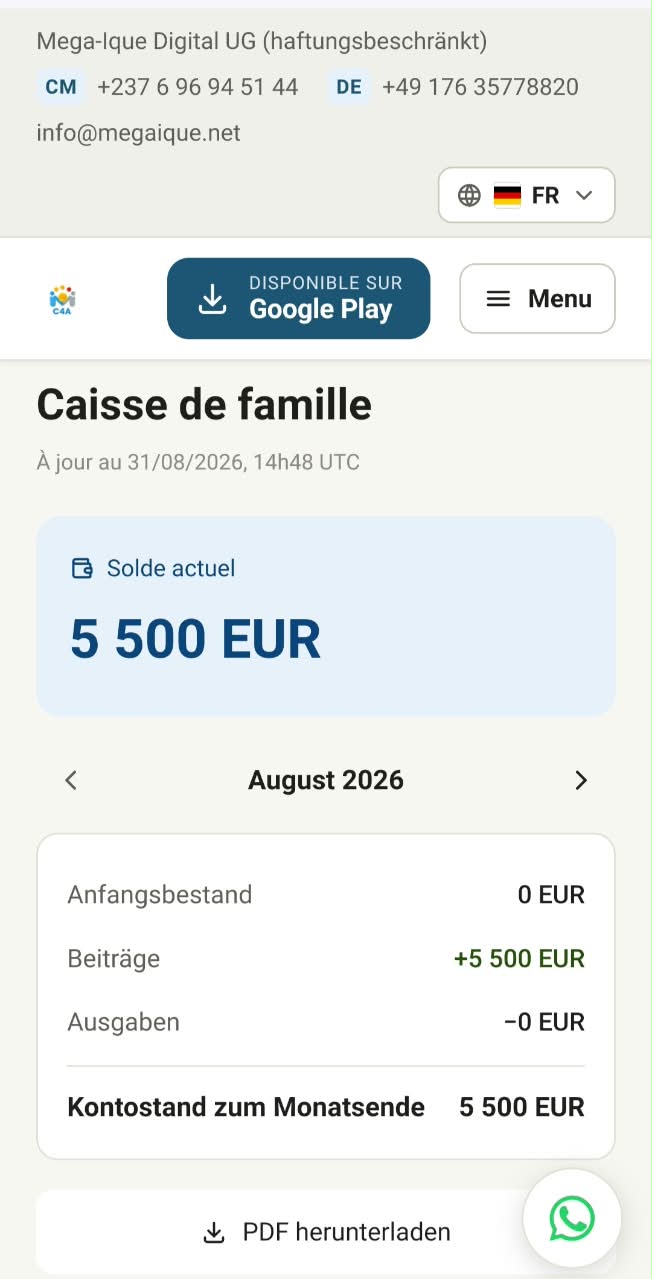
A treasurer or an administrator can share the fund's statements. People without the app then view a read-only web page by entering the fund's secret code. The page shows the balance, a monthly summary you can browse, the date it was last updated and a downloadable PDF.
By default, member names are hidden: each member views their own statement by entering their personal code, supplied by the organiser. The group can choose to show names instead. The secret code can be regenerated at any time, which immediately revokes the old link. When the fund hides transactions between members, names stay hidden on that page whatever this display choice is.
Offline mode and notifications
With no network, a cash contribution is saved and marked "Waiting to sync", and an information bar appears at the top of the screen. Once the network is back, syncing is automatic: nothing you entered is lost.
You are notified as soon as your contribution is approved. The notifications that track the group's incoming money stay reserved for the administrator and the treasurer: a member is never told about somebody else's contribution. The Notifications tab gathers the events from your funds and lets you mark everything as read. From Profile, you can change language, change your password and sign out.
Points to watch
- Amounts are always strictly positive and expressed in the fund's currency (EUR in your region).
- The balance is consistent everywhere: dashboard, list and detail view.
- An anonymous contribution never reveals the name of the person behind it.
- An auditor sees no action buttons at all.
- No financial operation is ever deleted: it is cancelled or archived, and the log keeps the record.